Your meeting notes have a problem that gets worse the more meetings you record: the answer you need is somewhere in there. "What did we decide about pricing across the Acme calls?" "What action items are still open on my plate?" "When did we first discuss the migration?" Search finds words; these are questions. This guide sets up the piece that answers them: Speechmark's local MCP connector for Claude Desktop, which lets Claude reason over your whole meeting history — decisions, action items, transcripts — while the archive itself stays on your Mac.
Setup is genuinely one click plus one confirmation. The interesting part is how it works, so let's do both.
What you get
Once connected, you can ask Claude things like:
- "Search my meetings for Acme pricing and tell me what we decided."
- "What action items are still open for me from the last two weeks?"
- "Summarize how the roadmap discussion evolved across the June planning calls."
- "Which meetings did we talk about hiring, and what was the conclusion in each?"
Claude answers grounded in your actual meetings and can cite which meeting each claim came from — because it's not guessing, it's calling search tools against your archive.
How it works (one paragraph of theory)
MCP — the Model Context Protocol — is an open standard for giving AI assistants tools. Speechmark ships a small MCP server that exposes your meeting archive as five read-only tools. It runs locally, speaks to Claude Desktop over stdio (no sockets, no network), and reads the same local files Speechmark already writes — there's nothing to export or sync. Claude Desktop packages this as a Desktop Extension, so it runs on Claude's own bundled runtime: no Node.js to install, no config files to edit.
Setup: two clicks
You need: Speechmark, and the Claude Desktop app installed and signed in.
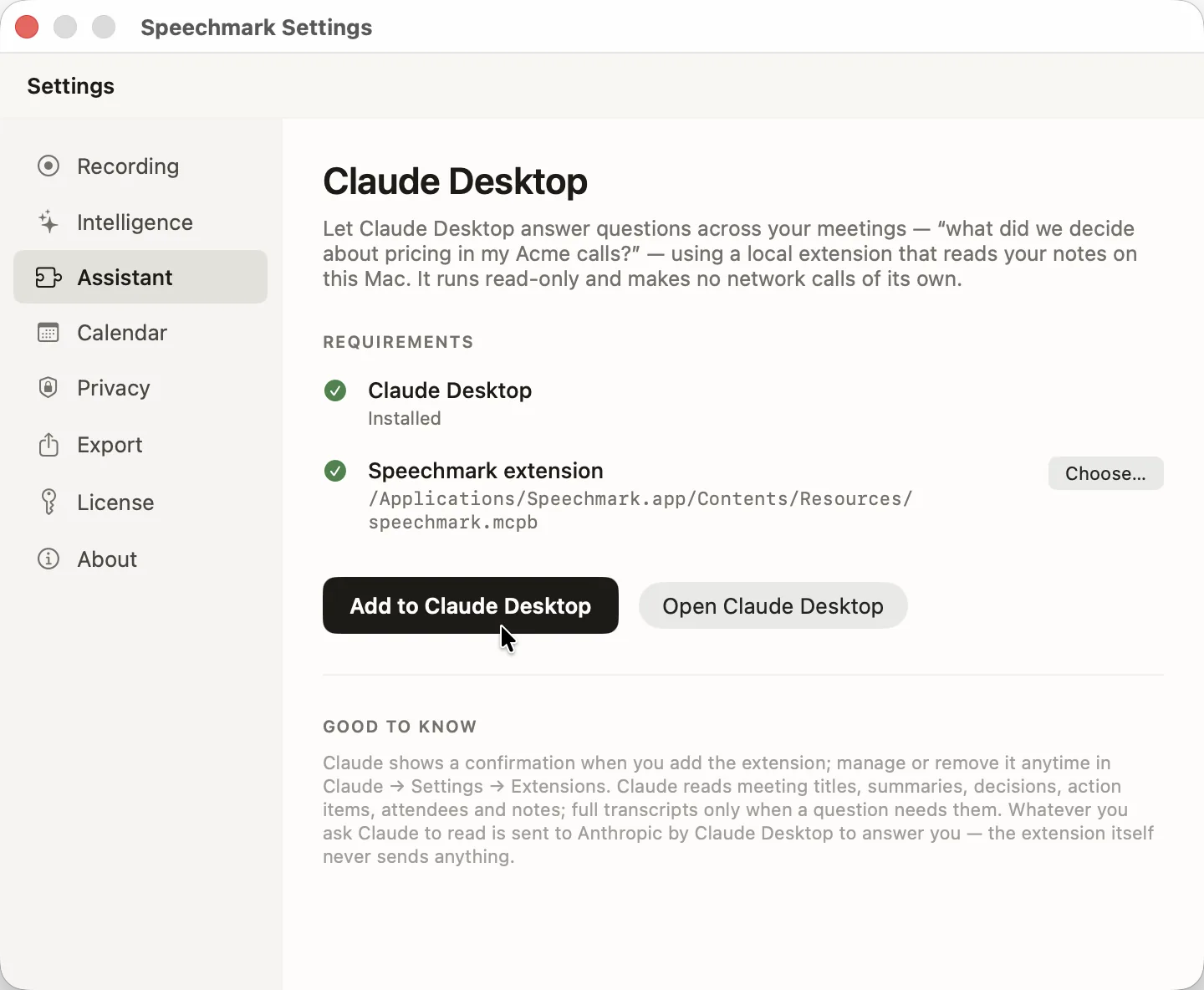
Step 1 — In Speechmark: open Settings → Assistant and click Add to Claude Desktop.
Step 2 — In Claude Desktop: Claude opens with an install prompt for the Speechmark extension. Click Install.
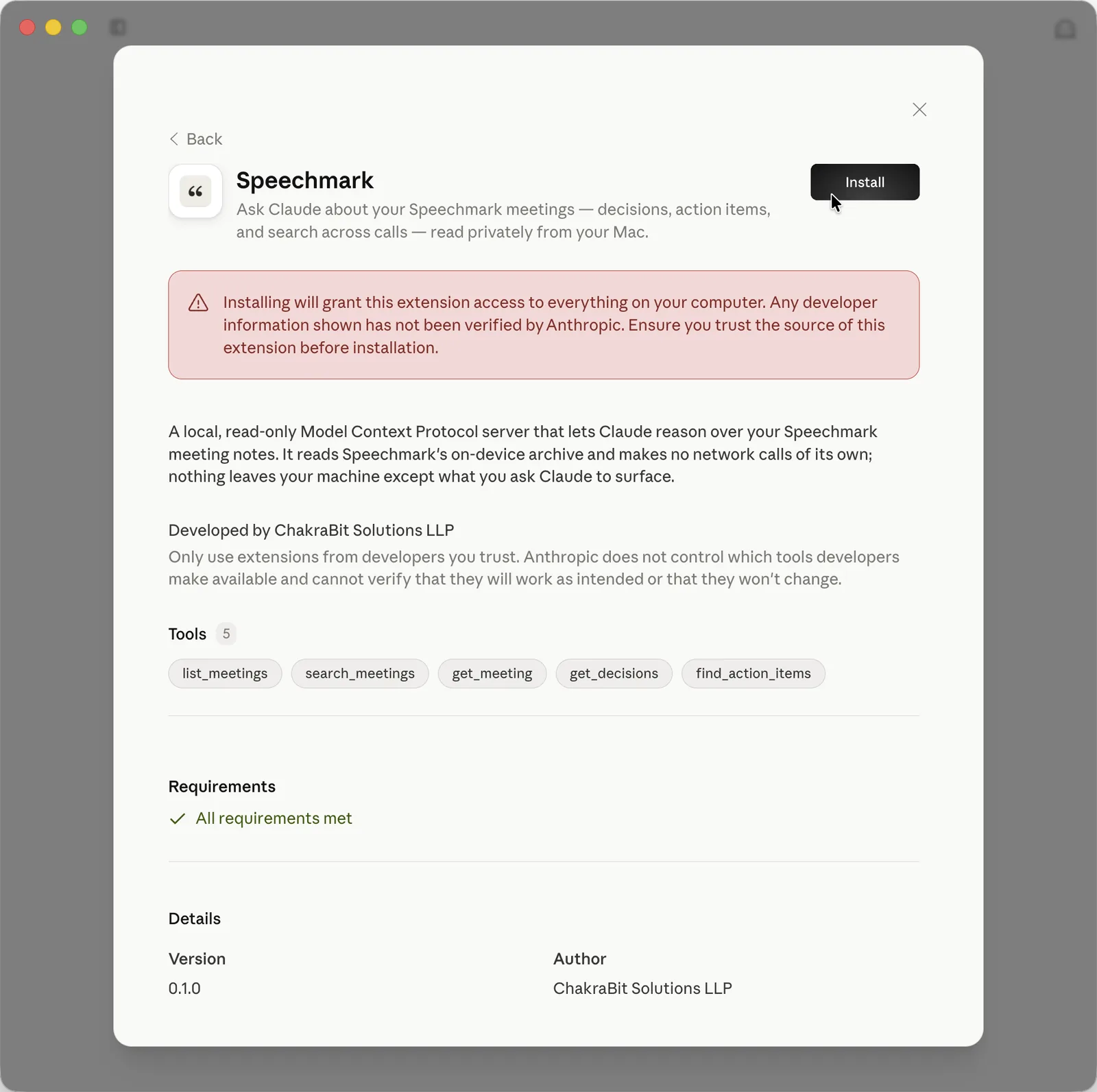
You'll see Claude's standard third-party-extension warning (the red banner) — it appears for every local extension, whoever makes it. As the description on that screen says: the Speechmark extension is read-only and makes no network calls of its own, so nothing leaves your Mac except what you ask Claude to surface.
That's it. Open a new Claude conversation and try: "Search my meetings for [a client name] and tell me what we decided." The first time, Claude may ask you to allow the Speechmark tools — approve, and it starts answering from your archive.
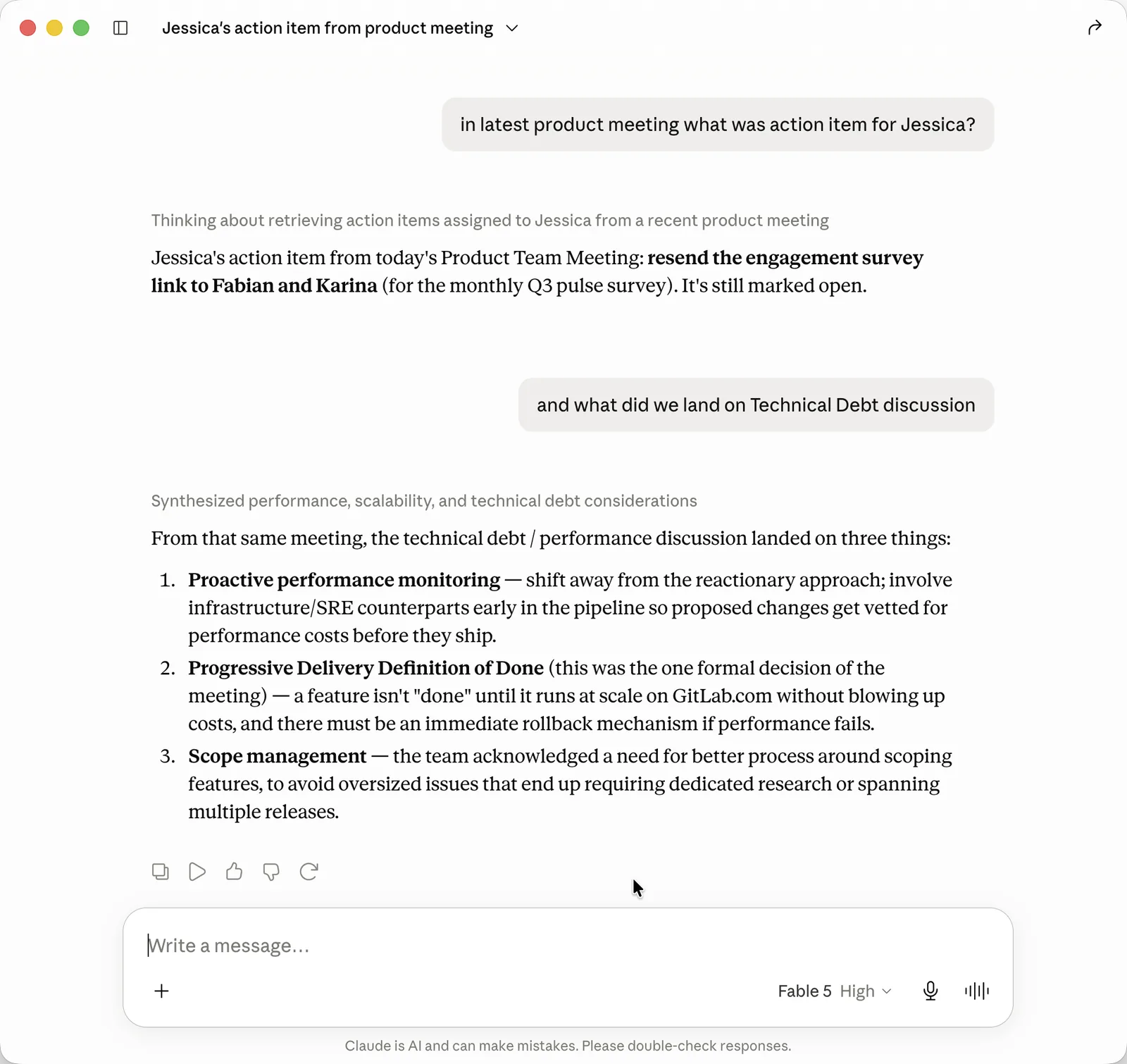
To manage or remove the connector later: Claude → Settings → Extensions.
The five tools Claude gets
You don't call these yourself — Claude picks them based on your question — but knowing what exists helps you ask better:
| Tool | What Claude uses it for |
|---|---|
list_meetings |
Browsing recent meetings, filtering by date range or folder |
search_meetings |
Keyword search across titles, summaries, decisions, action items, and transcripts |
get_meeting |
Pulling one meeting's full detail (including the verbatim transcript when needed) |
get_decisions |
Collecting decisions across meetings, each tagged with its meeting and date |
find_action_items |
Open or completed action items, filterable by owner — "what's still open for Priya?" |
The privacy fine print, stated plainly
This connector exists because of a simple asymmetry: cloud meeting tools can't offer it privately. When your notes live in a vendor's cloud, "ask AI about your meetings" means their AI, their servers, their terms. Speechmark's notes are local files, so your AI can come to the data instead of the data going to a platform.
Two honest clarifications:
- The server is local and read-only. It makes zero network calls, has no telemetry, and ships no tool that can write, edit, or delete a meeting. Its entire capability is reading the archive Speechmark already keeps on your disk.
- Claude is still a cloud AI. When Claude retrieves excerpts to answer you, those excerpts join your conversation and are processed by Anthropic under your Claude account's terms — same as anything you paste into Claude by hand. The difference from a cloud meeting platform is control and granularity: nothing is uploaded wholesale, nothing syncs in the background, and what leaves the machine is scoped to what you asked. Don't ask Claude about a meeting you wouldn't paste into Claude.
If that trade still isn't acceptable for your most sensitive material, keep those meetings out of your questions — the archive itself never moves either way.
Advanced: other MCP clients
Any MCP-capable client can use the same server — it speaks plain stdio and isn't Claude-specific. The connector ships inside the app bundle as a .mcpb, which is an ordinary zip; unpack it and point the client at the server.cjs inside:
mkdir -p ~/speechmark-mcp
unzip -o /Applications/Speechmark.app/Contents/Resources/speechmark.mcpb -d ~/speechmark-mcp
{
  "mcpServers": {
    "speechmark": {
      "command": "node",
      "args": ["/Users/YOU/speechmark-mcp/server/server.cjs"]
    }
  }
}
One catch the extension hides: other clients use your system Node, so you need Node 22.5 or newer. Claude Desktop bundles its own runtime, which is why the route above needs nothing installed.
Per-client steps — Cursor's mcp.json, VS Code's different servers key, and the one-line claude mcp add for Claude Code — are in connecting meeting notes to Cursor, VS Code, or Claude Code.
Where this fits
If you're new to Speechmark, start with the getting-started guide — record a couple of meetings first so Claude has something to chew on. And if you're comparing tools: this local-AI angle is a genuine differentiator, because it requires the notes to be yours — we go deeper on that in Speechmark vs Otter and the private meeting-notes roundup.